Showing posts with label how to. Show all posts

27 September, 2016

What is USB debugging?


What is USB debugging?


USB debugging? What does USB debugging on andriod mean? You must likely have seen the USB debugging pop up,  immediately you plug in your USB cable on your computer. USB debugging is basically just a way to allow an Android smartphone to transfer information to and from a computer. So no need to be scared or freaked out.

 What is USB debugging? 

USB debugging?  As the word debugging means, it is connected to the process on monitoring bugs through your USB. Android software developers use this act to troubleshoot and find problems using the Android studio kit on a PC. It is also used by developers and the usually day to day andriod users it carrying out tasks, like installation of custom recovery, rooting a device, installation of a new ROM. 


How to enable USB debugging 

Now for you to enable the USB debugging feature, you first of all have to enable developer options. Here is how. 

  1. Go to Settings 
  2. Scroll down to 'About Phone
  3. Tap on 'build number' 7 times until you see a message saying Developer options are activated
  4. Click back and the developers option would appear now  at the bottom of the page. 
  5. Click the developers option, enable the developers option, and scroll to find USB debugging and enable it. 
    What is USB debugging
Now for older andriod devices with operating systems of 2.3 and older. Do this :
  1. Go to Settings. 
  2. Click applications or application manager. 
  3. Scroll to Developer options 
  4. Click to enable developer options. 
There you go guys, it's all done, you have successfully enabled USB debugging. You can now install custom ROMs on your Android. If you like you could also use your Android remotely, even you have a broken screen. 
Any questions about this topic?  Drop it in the comments section below, we would reply asap! 

Thanks for reading! 
 

Read more

13 September, 2016

Top 5 ways to get more memory space on your Android.

Get more memory on Android

This is a quick fix for one of the most annoying notifications on Android "insufficient memory"  and get more space on your Android

Get more memory on Android

Most andriod users have at least once seen that notification. This problem of  "low memory space on android phone" often comes while trying to update apps on Google play store, take new pictures, downloading or when recording a video. This leads to the question, how to clear up memory on Android? 


Get more memory on Android


I for have this low storage space on Android regularly, it's better your get smartphones with more internal and expandable memory. The Huawei Honor 8 and the ASUS ZenFone 3 Deluxe could be options. 

However for those wish to stay with their present smartphone, this tips on getting more free memory on Android is definitely for you.

Read these also:


5 top tips to free memory on Android 

  1. Delete cached maps. 

Do you have the habit of caching offline maps in advance, as you keep traveling around remote parts of the world? While this feature is helpful, it can however eat a lot of memory space on your andriod, if you have got half the country saved to your internal storage.

In Google Maps, go to Offline areas from the main app menu, tap on an area and you will get the option to delete it from your andriod memory.

 2. Delete synced playlists


Maybe one of the reasons behind your andriod is running out of memory could be the different type of album collection you have on your andriod. If yes, you can quickly go through the list and delete the ones that you do not need, which in turn will give you some space on your smartphone.

In Google Play Music, you can go to Manage downloads from Settings on the main app menu to actually see tracks on your device. Tap the orange tick next to any playlist, album or song to remove it from your smartphone.

 3. Delete browser downloads

Do you regularly download large files from the web and forget about them? Stock Android offers a Downloads app right in the main app drawer, so that you can quickly check what you have got in there and erase anything that are not required.

On Android,  you can clear the website and history data from your mobile browsers too, but the storage space savings are unlikely to be important.

 4. Delete photos and videos

Have a huge collection of memorable pictures or 4K video clips but do not wish to delete them? While the easier option to make space on your smartphone would be to go to the gallery app of your choice and just delete some of the images and clips. However, you may want to retain most of them.

For Android smartphones, there is Google Photos that offers free up device storage option on the main app menu that scans for pictures and videos that have already transferred to the cloud and deletes the local copies. To do this on Android devices manually, go to Device folders from the app menu, choose a group of pictures, tap the three dots on the menu bar and select Delete device copy.

 5. Delete games you are no longer playing

Often the worst culprits, games eat a lot of space on your device as far as storage goes. While uninstalling apps can remove some space on your smartphone, you need to select apps of a substantial size to actually clear the decks.

It is important to double-check what happens to any saved games you have saved before removing any title. However, if they are in a safe place in the cloud (or you just don’t want them), then erasing games you are no longer playing can be a real space saver.

To check out how much storage each game utilizes on Android, you can go to Settings and tap on Apps.

Hope this helps guys. Leave your comments in the section below. 
Read more

28 August, 2016

4 best tips to charge your smartphone battery.

According to research you most likely have been charging your smartphone the wrong way

4 Top Tips on smartphone charging

The major problem with smartphones is that their  batteries gets drained very quickly. They hardly survive for a day.
 Some people think their smartphones batteries drains super-fast because they are not charging the smartphone the right way, or using the wrong charger or even blame the power source. While others just have this believe that it's better to only charge the smartphone only when it is completely or almost dead, because charging your smartphone intermediately in short intervals or when the battery is not yet below a particular percentage, would cause damage to the smartphone battery. 
That said, according to Battery specialist firm, known as Battery University, the lithium-ion batteries in our smartphones are sensitive to their versions of ‘strain’. And, extended stress could be damaging your smartphone battery’s long-term lifespan, like for humans.

If you wish to keep your smartphone battery in excellent condition and stop worrying about battery life, there a few things that you need to change.
The 4 best tips for longer battery life. 
1.You Don’t have to keep it plugged in when it’s fully charged
According to Battery University, leaving your smartphone plugged in when it's fully charged, this leads to you overcharging your smartphone and the is quite bad for the battery over time. When your smartphone is fully charged and is at 100%, what happens is, your smartphone receives ‘trickle charges’ to keep it at 100% while plugged in. This keeps the battery in a state of high-stress and high-tension  which reduces the chemistry in the battery. 
A simple explanation to the scientific details as to why this happen, Battery University also summarizes it simply: “When fully charged, remove the battery” from its charging device. “This is like relaxing the muscles after strenuous exercise.”
2.Keep it cool
Smartphone batteries are so sensitive to heat that Apple itself suggests you to remove iPhone from cases when you charge it. “If you notice that your device gets hot when you charge it, take it out of its case first.” Also, ensure that your smartphone is covered when you are out in the hot sun. It will safeguard your battery’s health.
3.Try not to charge it to 100 percent
NB: Don’t charge the battery all the way to 100%, when you don’t have to.
According to Battery University, “Li-ion does not need to be fully charged, nor is it desirable to do so. In fact, it is better not to fully charge, because high voltage stresses the battery” and wears it out over time. 
Most times we want to keep our smartphones charged the whole day, this may seem counterintuitive. It would be better you plug it in at any time in the day. 
4.Plug in your smartphone whenever you can
Like most people do, you shouldn't wait until your smartphone battery is 15% or less. Charging occasionally throughout the day can help the overall battery’s performance instead when they are empty.
Quoting Battery University, charging your smartphone when it loses 10 percent of its charge would be the best option. While this may not be possible practically for many people, just put your smartphone on charge whenever you can. It is fine to plug and unplug your smartphone multiple times in a day.
This does not only keep your smartphone’s battery performing optimally levels for longer, but also keeps it at a good percentage the whole day. Also, constant battery top-ups also allows you to use features, like location-based features that use your smartphone’s GPS antenna that would you normally not use, because they are battery consuming.

Read more

16 August, 2016

Best ways to hide your presence on Whatsapp.

Sometimes you don't want to reply or appear to ignore messages on whatsapp. This article is just what you need to go unseen on whatsapp and get the privacy you want.

The Google Talk also called the GTalk, has a settings let you go invisible, all you have to do is turn on the invisible mode in the Google Talk.

Whatsapp doesn't offer the invisible mode option, but you could still get the privacy and silence you want.

Here are the ways explained  with images below that can help you become invisible on WhatsApp:

1. Remove whatsapp Blue Ticks. 
Remove Whatsapp blue checkers

The Blue Ticks basically mean that you have read the messages. In other words, it means that you are there online and also supposed to reply to the message instantly. To disable the Blue Ticks feature, go to Account > Privacy > Uncheck Read Receipts box.

2. Hide your Last Seen
Hidden whatsapp last seen

By disabling or hiding your “last seen” feature, you can do away with the pressure to respond to messages immediately. You need to go the settings option in your WhatsApp and select account to turn it off. Change your last seen to “nobody” under the Privacy tab and it’s done. Now nobody will know when you were last seen on WhatsApp. By disabling this feature, you too won’t be able to see the same information for others.

Read also solutions to whatsapp problems today. 

3. Hide your Status:

Repeat the same process as you did for hiding your last seen. Go to Settings > Privacy > Status > Nobody. There you go!! Your status won’t be visible to anyone now.

4. Hide your profile photo

Now, keep your enemies and stalkers at bay by disabling this feature. All you need to do is to go to Settings > Privacy > Profile Photo > Nobody.

5. Snooze or pause WhatsApp:

This feature is available only for Android users. While currently there is no way one can pause within the WhatsApp, but you can temporarily stop receiving any messages on WhatsApp by going to Android’s app settings. Go to Settings > Apps > WhatsApp > Force Stop.

The app will be frozen once you have force stopped WhatsApp. Even if you have a working data connection in your phone, it won’t be able to connect to internet. You won’t receive any messages. To activate it, you need to tap on the WhatsApp icon on the phone and open the app. It will resume its function and you will start receiving messages.
Read more

02 August, 2016

Solutions to whatsapp problems on andriod.

Whatsapp problems on Android and their solutions.

Whatsapp problems SOLUTIONS


Whatsapp has become a very popular means of sending instant messages on our mobile devices today, and whatsapp recently celebrated having 1 billion users. This post is to help with some common whatsapp problems today's users encounter why trying to use whatsapp on Android. 

Here we go with some Whatsapp problems on andriod and solutions :

I cannot install WhatsApp

In order to download the latest version of WhatsApp, you need to have a smartphone running Android version 2.1 or higher (Note, Android 2.1 and 2.2 will no longer be supported by the end of 2016). To check your smartphone’s current Android version, you need to go to Settings > About Phone.
If you are trying to install the WhatsApp app from the WhatsApp website, you will need to have Unknown Sources enabled in your Security Settings. Go to Settings > Security > Unknown Sources to activate it.
Did not receive my activation code
You have not received the automatically generated message with your activation code, although you have installed the app correctly? In such cases, you need to ensure that you have entered your number correctly. Also, double check that you have selected the right country from the drop-down list. This is the country your phone number is from, and need not be the country you live in.
If you still do not receive the code, try requesting a voice call. By doing this, you will have the code read to you by a computer over the smartphone.
Remember, you need to have a SIM card to register for WhatsApp. Also, you can only use one device per phone number.

You could have multiple whatsapp accounts on one andriod. See how here
I cannot connect to WhatsApp, WhatsApp not working, or WhatsApp is down
Usually, WhatsApp connection problems are caused by your Wi-Fi network or data connection. If you are unable to send a message, here are a few solutions:
• Ensure that your phone is switched on
• Install the latest version of the app from the Play Store
• Check your internet connection, Wi-Fi or 3G (in Settings > Wireless and Network)
• Ensure that a Task Killer app is not affecting WhatsApp
• Empty the app cache (Settings > Applications > WhatsApp > Clear Cache)
• Finally, the most extreme solution would be to uninstall the app and then reinstall it
At times, even the powerful WhatsApp faces server issues. If you think WhatsApp is not working because the service is down, then go to the WhatsApp Status Twitter account, where outage updates are provided.

Countries with the fastest internet. See them. 
WhatsApp is not recognizing my contacts
There may be a few reasons why WhatsApp wouldn’t identify your contacts, so here is a simple checklist to ensure that it does:
• Ensure that you have the correct contact numbers (the ones they use for WhatsApp)
• Ensure that they are currently using WhatsApp
• Ensure that you have the latest version of WhatsApp
• Ensure that all of your contacts are ‘visible’ and/or ‘viewable’ in your contact list.
• Ensure that all of your contact groups (friends, family, co-workers, etc.) are set to ‘visible’ and/or ‘viewable’ in your contact list.
WhatsApp has duplicate contacts
While this problem has been largely removed through updates to WhatsApp, if you have duplicate contacts in your address book, it might continue to stay in some way. Find out how to remove duplicate contacts in Android.
Can’t play video error
You can try two things to avoid the above. Firstly, check if the Google Photos are up to date. Open up the Play Store, press on the hamburger menu button at the top left and then on My apps & games, and see if Google Photos is at the top of the page, waiting for an update.
If this doesn’t help, then another option is to go to Settings > Apps / Application Manager > Google+ and press on Uninstall updates.
What does ‘Last Seen’ mean in WhatsApp?
The ‘Last Seen’ time message lets you when a user was last using WhatsApp. This does not necessarily mean that they have read your messages. It means that they have only opened the application.
When you are in WhatsApp and one of your contacts also opens it, you will see their status change to ‘Online’, but again, this doesn’t mean they are looking at your messages. It is just that they are using WhatsApp.
I can’t see ‘Last Seen’ on WhatsApp
If you are not able to see the Last Seen time stamp in a conversation, there could be a number of reasons. If you have disabled your Last Seen time in Settings > Account > Privacy > Last Seen, then you will not be able to see other people’s Last Seen time, either.
Whatsapp last seen settings


If the problem is only with one or some contacts, then it might mean that they have disabled the Last Seen time in their WhatsApp settings. If they are still receiving and replying to your messages, this is more or less the case.
Finally, it could be that a contact has blocked you. If your messages never go beyond the one grey tick, then it is more certain that you have been blocked. Also, if you are unable to see the changes to the contact’s profile, then you have certainly been blocked.
What do the blue check marks mean in WhatsApp?
There is a lot of misunderstanding about what the two checks (or tick marks) in your WhatsApp message window mean. However, here is a quick summary:
• The clock symbol means your message is yet to be sent from your device.
• One grey tick means that the message has been sent and has been received by the WhatsApp server.
• Two grey ticks mean the message has been delivered to the intended device.
• Two blue ticks mean that the recipient/recipients have seen the message. (In group conversations, this means when all participants in the group have viewed the message.

Google social app Allo, better than whatsapp?  See here. 
I have problems with voice calls or cannot answer calls
If you are facing issues of poor quality voice calls, drop outs or you are unable to make or receive calls, it is almost certainly linked to your internet connection. Voice calls are carried out over Wi-Fi or mobile data.
Make sure that your connection is strong. If you are using mobile data, you will at least need 3G. You can try to disconnect and again reconnect to the network. The problem may not even be on your end: the person you are talking with will also need to ensure they have a good connection.
I cannot hear audio messages or WhatsApp cannot play audio
This could be linked to the proximity sensor that WhatsApp depends upon. It is found near the front-facing camera on your smartphone, and detects when you are holding your device to your ear. If the sensor is activated, audio will play through the ear speaker very quietly. Make sure that you keep your smartphone away from your face, and the audio should play through the normal speaker. Also, ensure that the volume is turned up as well.
I can’t download videos or photos on WhatsApp
Go to Settings > Data usage and check if you only have media auto-downloads enabled when you are on Wi-Fi. If they are, you will either need to enable auto-downloads on mobile data and/or when roaming or connect to a Wi-Fi network.
As often is the case, the fall back is to restart your router if you are on Wi-Fi and to restart your smartphone, as well.
WhatsApp is blocked in my country
If you are one of the unfortunate few to have WhatsApp blocked in your country, there is a way around the problem. Use a VPN (virtual private network).
I cannot save photos to send to another contact
All you need to do is long press on the image in the chat that you want to share, and a right-facing arrow will appear at the top-right of the page. Press on this, and you can choose the contact you want to share the image with.
What should I do if my phone is lost or stolen?
In such a case, your first step should be to lock your SIM card by contacting your carrier. Once this is done, WhatsApp can no longer be activated on that device. However, you can reactivate WhatsApp on your new smartphone, once you have a new SIM (likely with the same number).
Meanwhile, send WhatsApp a message asking them to deactivate your account. Send an email with the subject “Lost/Stolen: Please deactivate m to y account” to support@whatsapp.com, and include your phone number (complete with an international dialing code) in the email body. If you don’t do this, WhatsApp can still be used over Wi-Fi.

Still have unanswered questions? Check out some more whatsapp frequently asked questions (Faq) here
Source: AndroidPIT 


Read more

02 June, 2016

Use multiple social media accounts from your Android.

Many times we would like to have more than one Twitter, Facebook, Whatsapp, Bbm , snapchat, Instagram or even 2go accounts on our andriod phones. Even for those of us that play online games that requires only one Google account like clash of clans. This need to have multiple accounts can be for many reasons,  but it is not normally possible without rooting, but this tutorial would help you run multiple social media accounts without the risk and warranty voiding conditions of rooting. So what is required? This tutorial is a simple step by step guide to doing it yourself.

Check this out : Top Ways to go invisible on Whatsapp 

Most of us use dual sim andriod phones thanks to Tecno, Goniee, infinix and the rest, so if I have a dual sim smartphone why can't I have two different whatsapp accounts? What can I do? Parallel Space-Multi Accounts, this application provide us additional account, it means you can only run two separate accounts from one application without switching account (Logout -login) just needed to switch application.Mainly this application works for the social app and games for example Clash Of Clans, Facebook, WhatsApp and Messenger we all know that how a tedious and annoying process is log in and out for using separate accounts. There are also some purposes which can be called Business, yes many people do have Facebook business Pages/Profile too, so each and every person in this world does have two different accounts on the same application and we all need this application.

Check this out: Protect your social media accounts from hackers with this tricks 

Check this out : 4 best tips to charge your smartphone battery properly 


The 6 quick steps to use multiple social media accounts on Android 

   Step1: Go to Google play store and download Parallel Space-Multi Accounts .

Multiple social media accounts

Use multiple social media accounts on Android

Use multiple social media accounts on Android


Step2: After you install open the application.

Step3: Follow the guide as shown, swap left and you are done, click on START.


Use multiple social media accounts on Android


Step4: You can now add your accounts you want to, there are already showing, you just need to click on Add. An Automatic popup will appear will allow your to add applications.

Use multiple social media accounts on Android


Step5:Add all your application as showing, you can add also by clicking the below ‘+’ button at the bottom. 

Step6:To show the apps on your home screen press  hold that application and drag down to below shortcut button at the bottom of the screen , it will create a shortcut on your Home Screen.


Use multiple social media accounts on Android

Once you are done all the shortcuts would be on your home screen and you can now have different accounts. Having any questions or comments? You can comment in the comments section. Thanks 
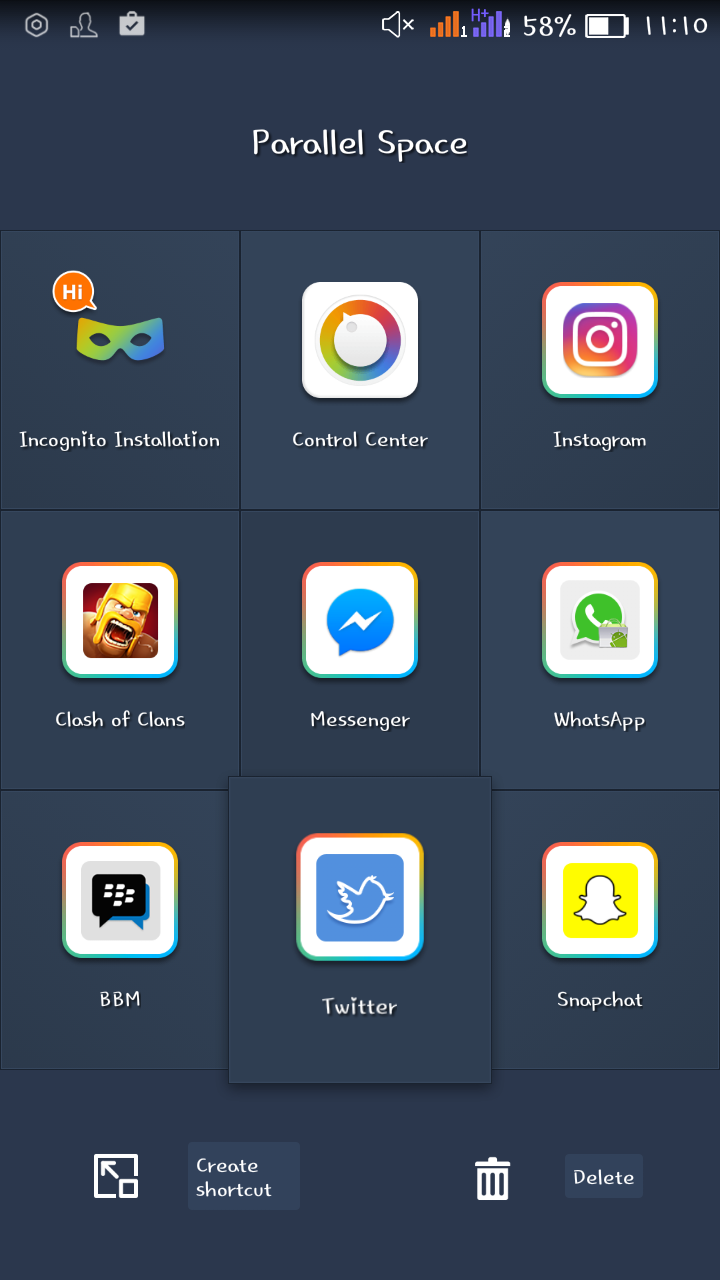
My home screen looks like this now.😀
Use multiple social media accounts on Android

Leave your comments, we did love them. 


Read more

31 May, 2016

Ways to reduce your andriod battery drain.

Fast battery drain, slow charging, and andriod system dominating apps are some of the main causes of  problems andriod phones have with battery drain, but this post would help in reducing battery drain.

                           1. Stop unnecessary apps running.
Firstly, we need to understand and know the behavior of our andriod batteries , so we can get a solution. To get an understanding of how your battery is been used , go to Settings > Battery.If you find apps on this screen that are using up more battery than they should be, close them by tapping Force stop.If you want to go into more detail about your smartphone's battery usage, there are quite a number of applications on play store to give detailed battery usage information.


2.Change your old battery to a new one 
If your andriod phone is some years old the truth is that the battery is dying . Manufacturers often say that a battery should perform well for up to 1000 charges, but that depends on many factors.If you have an andriod  with removable battery, it's simply a case of buying a new one (a major advantage to choosing a smartphone with removable battery).If your phone has a non-removable battery, then I would post how to remove non-removable batteries . Be warned though, that this svoid your smartphone warranty.

3.Your charger does not work properly. 
If after a full night's charging, you notice that your smartphone battery drains super-fast, then it's worth checking first thing in the morning whether it actually fully charges. If not, then you're looking at a defective charger.Check whether your cable works with another phone, or conversely whether your phone works with another cable. If your charger proves to be faulty, remember to only buy chargers from reputablereputable sources, or you risk damage to your battery.

4.Android system' using too much battery
One of the biggest battery consumers on your phone is the 'Android system' service. This keeps your whole device running smoothly, so naturally uses a lot of battery, but it shouldn't be more than 25 percent. If it's using more than this, then you could have a problem. You could downgrade you OS or do factory reset. It may sound drastic,  but it's less risk than downgrading your OS because it would require flashing and this could lead to complications . 

                                 5. Google Play Services battery drain. 
Google Play Services is another service that consumes a lot of battery. Unfortunately, you can't stop it because it's a crucial Android feature which lets your apps communicate with each other on your phone. Still, you can bring it under control.

Go to Settings > Applications > All > Google Play Services. Here, tap the Clear cache button. This should refresh Google Play Service and stop it draining your battery. Repeat this process once a month.


6.Shorten your screen timeout
It's a well-known fact that the display is one of the biggest sources of battery drain on an Android phone, so managing it is crucial to its longevity. The "screen-timeout" or "sleep" setting determines how long your display will stay awake for after it has been engaged with; if your screen remains on while you aren't looking at it, it's wasting precious battery life. Best to set it to the lowest value you are comfortable with in regular use, and only change it when you need to. 

Don't to worry about apps which require the screen to be on permanently while in use, like games or eBook readers, they know to stay awake no matter what your setting is. 


7.Watch out for widgets and background apps (weather widgets) 
Widgets are stone cold battery killers, mercilessly updating in the background while you go about your business. You might be under the impression that a simple news ticker and weather app won't do much harm, but you'd be wrong, and once you start adding more and more, it will seriously take your battery to task. 

Consider the frequency with which you want your widgets and background apps to update. You could potentially set your weather app to update every hour, but the more frequently it updates, the more power it requires. If you only check your weather twice per day, try setting the refresh interval to every 12 hours instead.

Many apps will prompt you to set up the update frequency when you first place them on your homepage, though you can return to their settings at any time to alter them. Just be aware that some apps don't offer this at all, and these may be real battery assassins to watch out for.  


Read more